









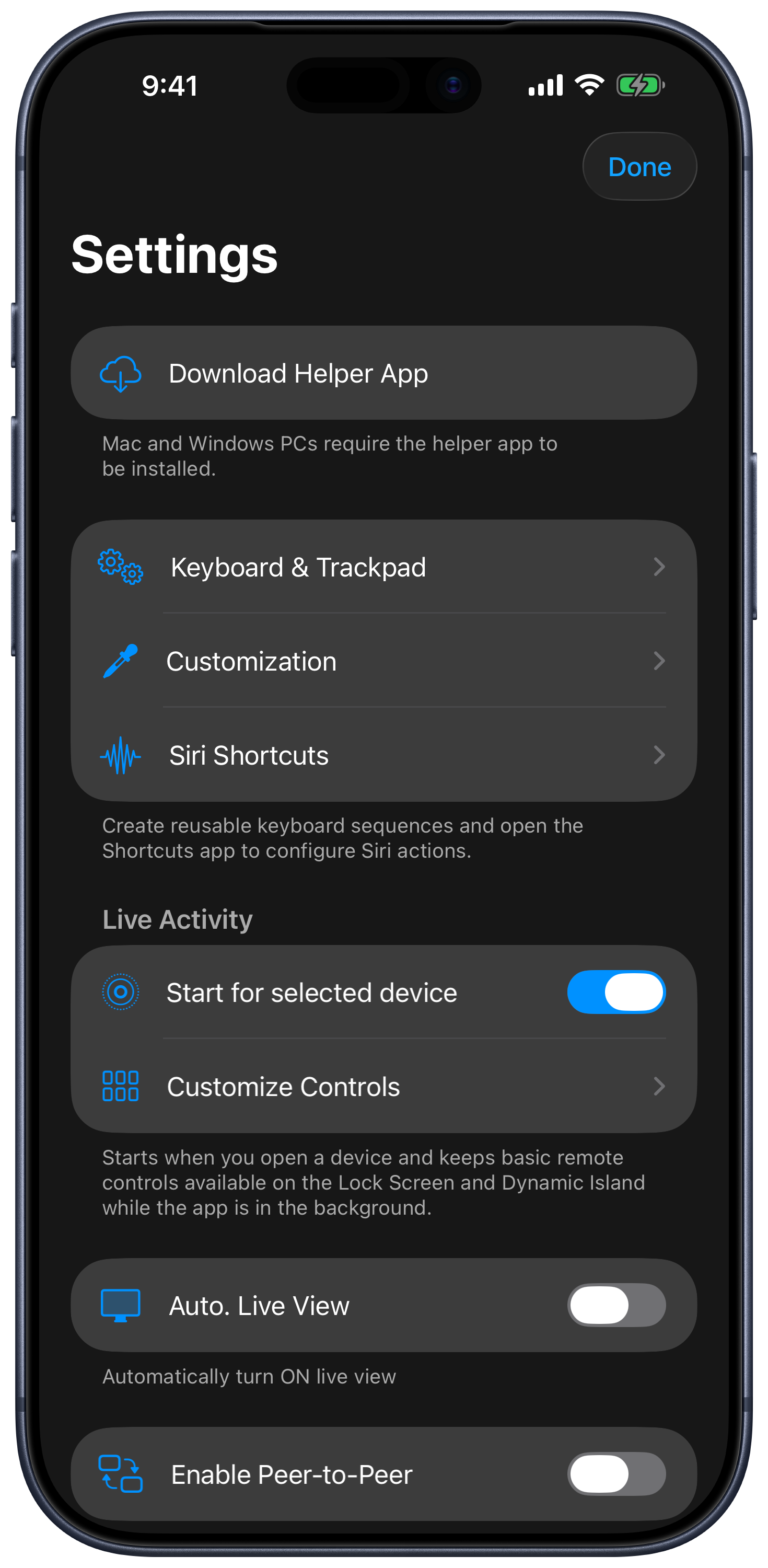
Open the device list, then its menu and Settings. Use Download helper app for the Mac/Windows installer link. Your saved devices are managed directly in the device list.
Keyboard & Trackpad
Adjust Live View, tracking and scrolling speed, mouse-button placement, keyboard preview, and modifier locking here. Top Mouse buttons moves the mouse buttons above the trackpad; Tap to Lock Modifier Keys changes how modifiers stay pressed. See the Input guide for the full walkthrough.
Siri Shortcuts and Keyboard Sequences
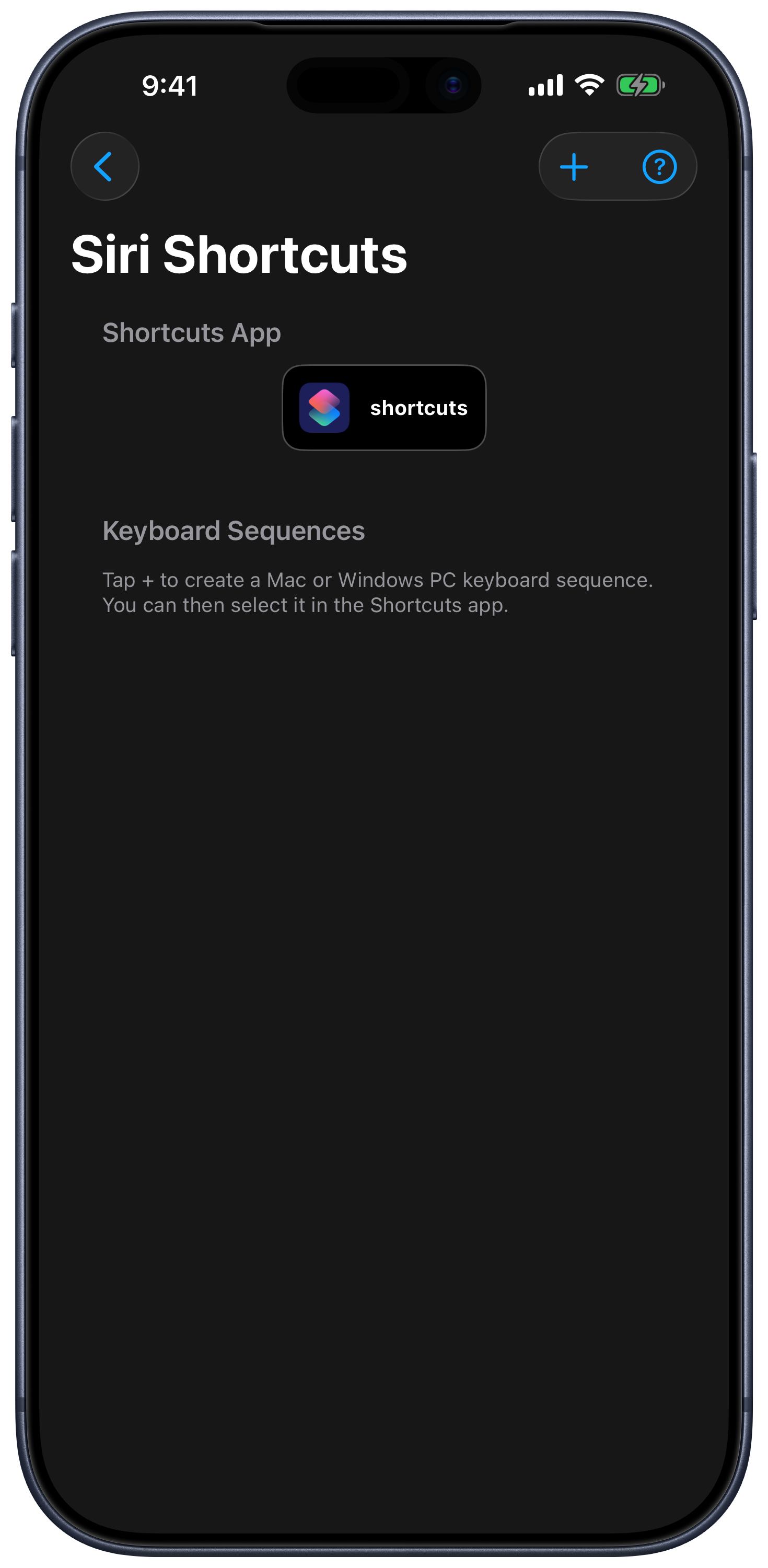
Siri Shortcuts now contains a Shortcuts App section and a Keyboard Sequences section.
- Tap + to create a sequence and choose Mac or Windows PC.
- Configure the keys and delays, then save a descriptive name.
- Open Apple’s Shortcuts app and add [Computer] Send Keyboard Sequence.
- Choose a saved computer and the sequence, test it, then run the shortcut by name with Siri.
Other actions can launch apps, open websites, run computer actions, change Mac AirPlay destinations, or open a device at a specific tab. See the Siri and Shortcuts guide for the available action groups.
Customization
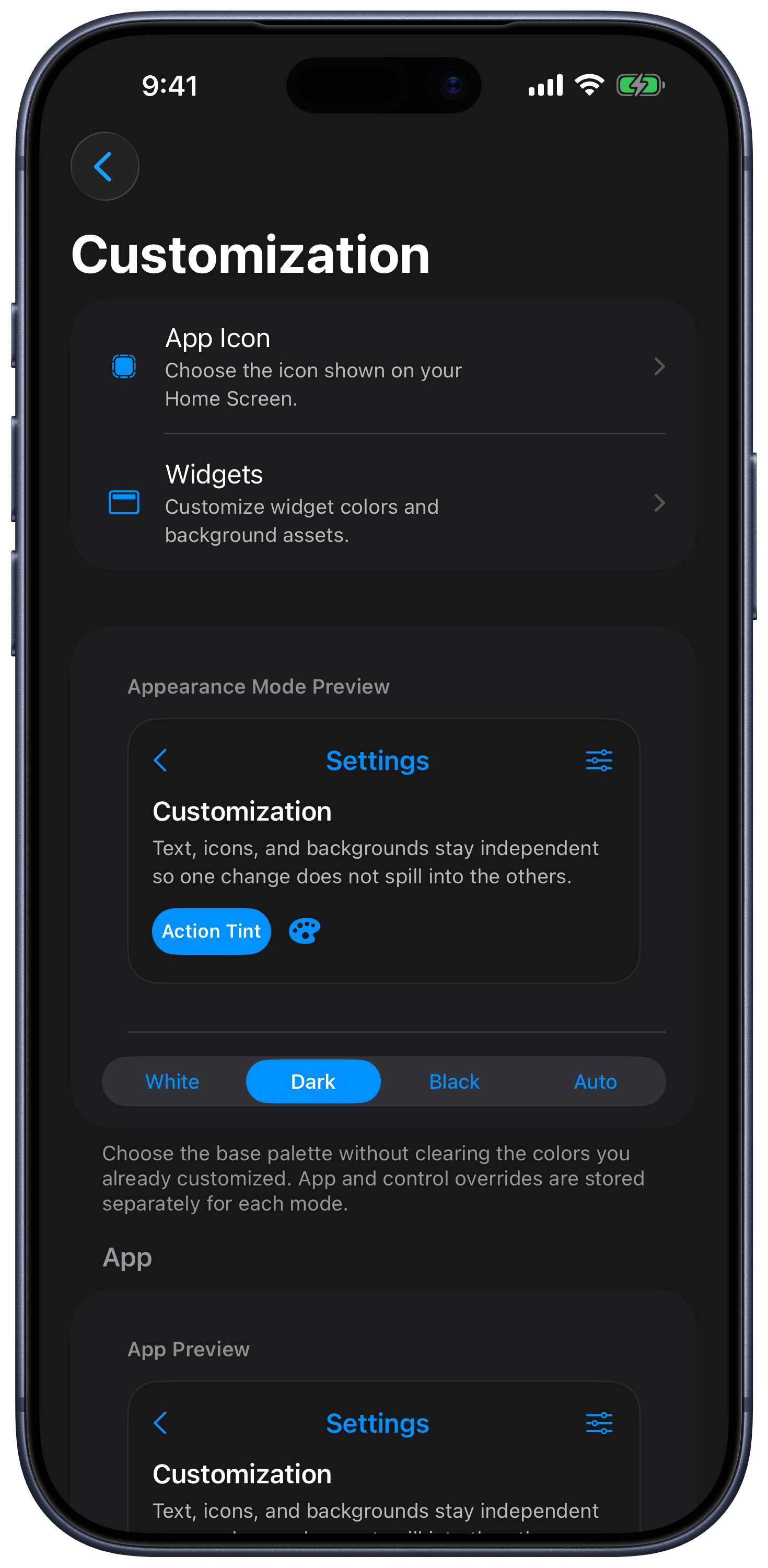
Choose Customization to change the app icon, widgets, appearance, and keypad behavior.
| Setting | What it changes |
|---|---|
| Appearance Mode | The base palette; your custom colors are retained separately for each mode. |
| App | Colors for screens, lists, and navigation. |
| Controls | Colors for keypads and remote surfaces, with an optional background image. |
| Reset App Colors in This Mode | Restores app colors for the selected appearance mode. |
| Reset Control Colors in This Mode | Restores control colors for the selected appearance mode. |
| Orientation Lock / Rotate 180° | The orientation of the remote interface. |
| Shake for Full Screen | Expands the Input surface when you shake the device. |
| KeyPads | Two-finger editing, rounded buttons, Hold to Repeat, and keypad tips. |
| Keys Click Sound / Haptic Feedback | Button feedback, including an Off option. |
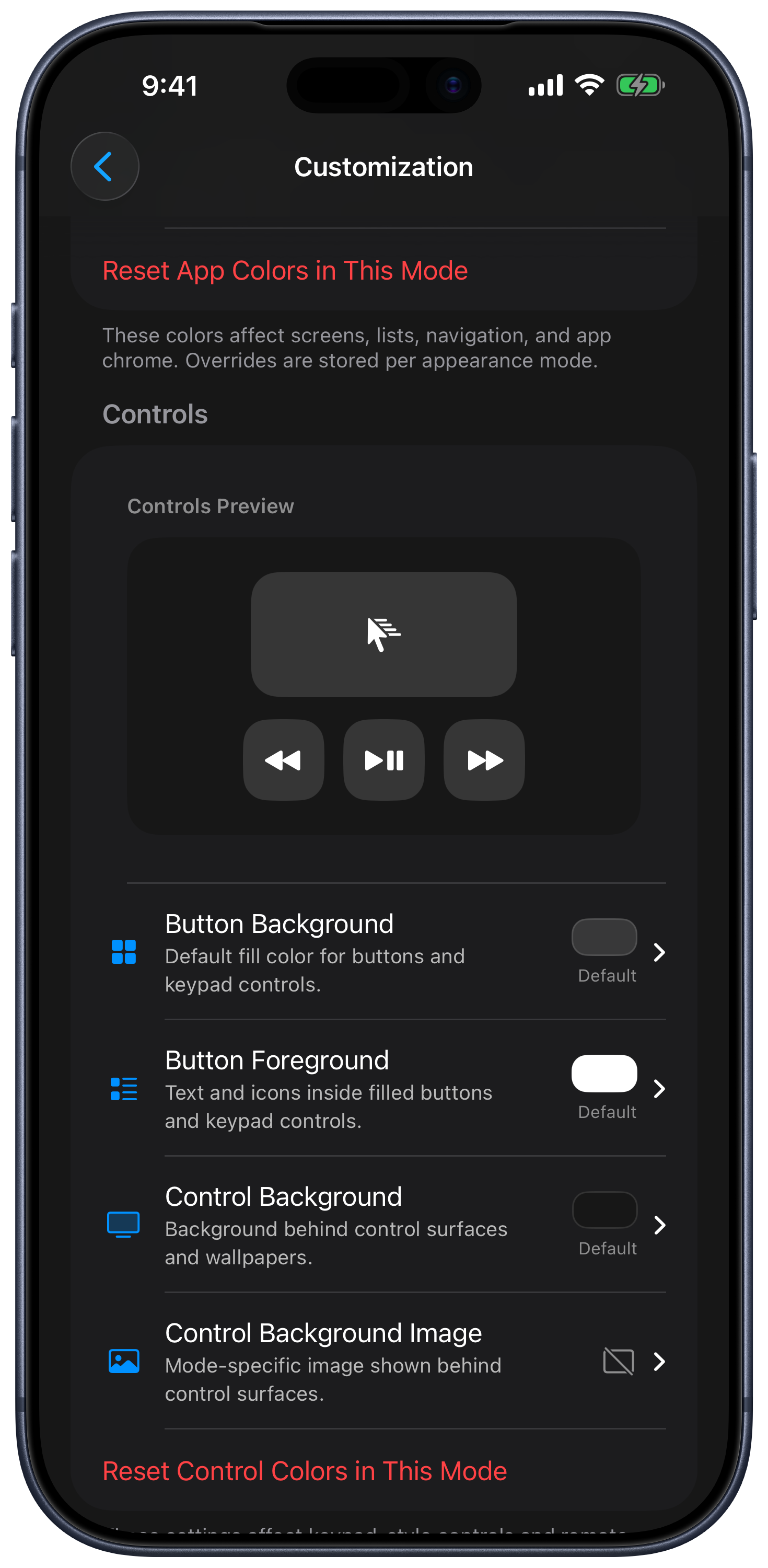
On Mac, Select KeyPad can follow the active computer app, while Associated App can launch the app assigned to the selected keypad. These are separate switches.
Manage Devices
In the device list, open a device’s More menu or hold its card. Use Default to select the device to open automatically, Assign to Room or Change Room to group devices, and Remove to remove a saved device. Wake appears for eligible offline devices with a saved network hardware address. See Devices and rooms.
Live Activity
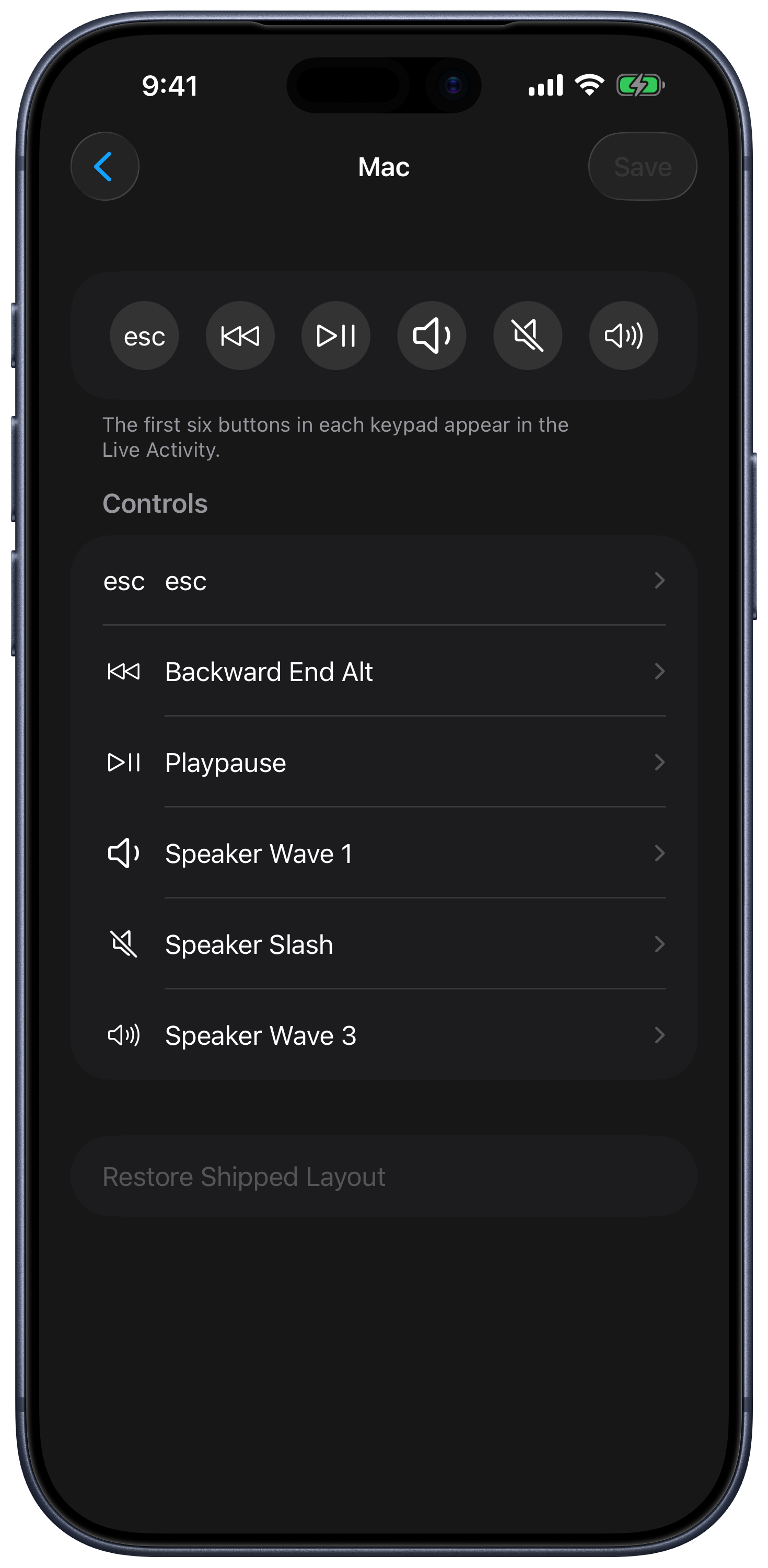
Enable Start for selected device to keep basic remote controls available on the Lock Screen and Dynamic Island while the app is in the background. Open Customize Controls to edit the Live Activity keypad. Availability depends on your device, Live Activities permission, and the selected remote.
Connection, Volume, and Sleep
- Bluetooth Discovery is off by default and turns on when adding an iPad. Mac and Windows use Wi-Fi/LAN and work with Bluetooth Discovery off.
- Enable Peer-to-Peer is an optional Mac connection mode. Leave it off when normal LAN control works; the app notes that it can reduce mouse performance.
- Use Physical Volume Buttons sends computer volume commands from the device’s volume buttons. Finer Adjustment uses smaller steps.
- Prevent iPhone/iPad Sleep keeps the remote awake. Use Proximity Sensor can turn the display off when face down; this is disabled while charging or when the battery is full.
Help and Purchases
Use the purchase section to upgrade, switch plans, or restore purchases. Feature Tips controls occasional local feature notifications. Website, Contact Support, Reddit Community, and sharing options are also available in Settings.